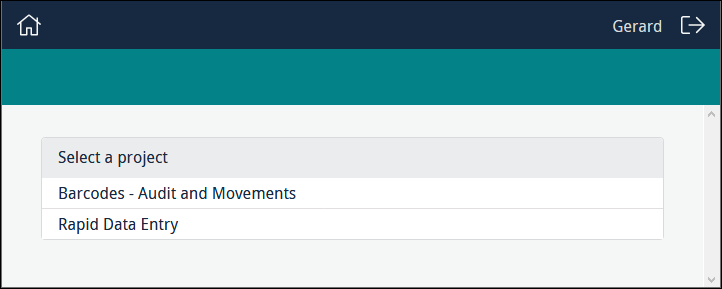
If you have been assigned to more than one project, a list of your projects will display when you log in. Select the project you wish to work with:
If you have been assigned to one project, or you selected a project from the list of projects assigned to you, a list of Forms, Editors, Queries and Tasks you are authorized to use will display:
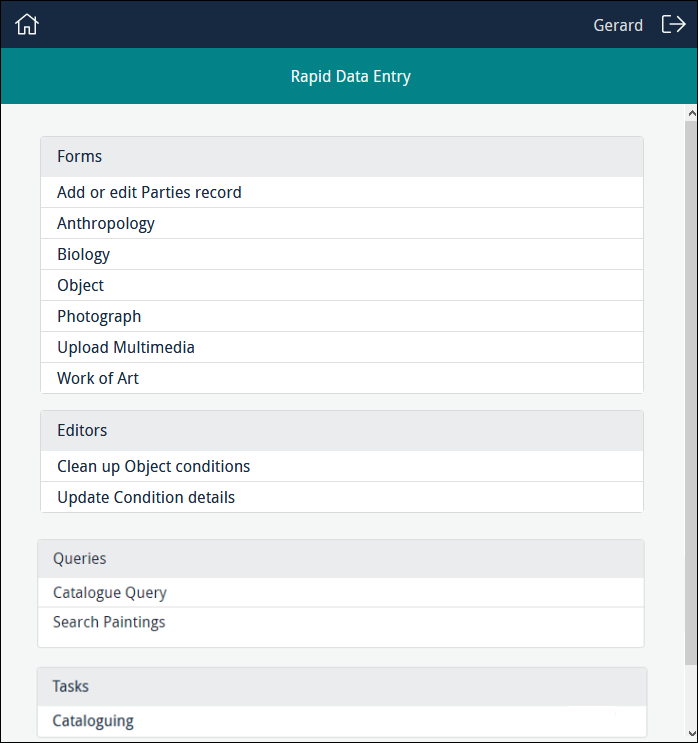
Tip: Tasks1 are a sequence of Forms. A Task enables you to work through multiple Forms in sequence, without the need to select each Form separately from the project dashboard.
Click the label of the Form you wish to work with, e.g. Object, to display the Form ready for use, for example:
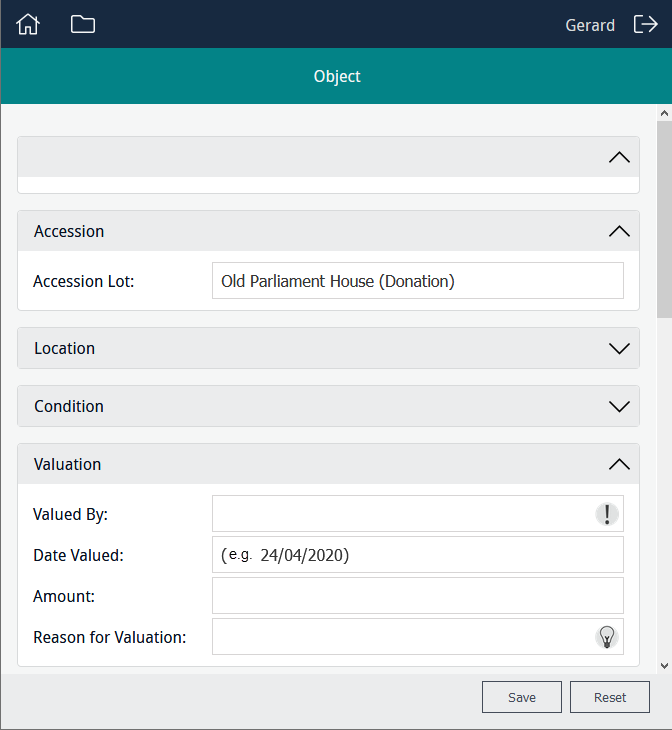
A Form includes buttons and icons and different types of fields. Some fields are interactive and respond as data is entered into them, date and attachment fields for instance.
You will find a description of these various Form elements here:
 The elements of a Form
|
Default values |
A field can include a default value, Accession Lot in the example above. A default value is typically provided by the Form's designer if the value is most often used in a field. Unless it has also been configured to be |
||||||
|
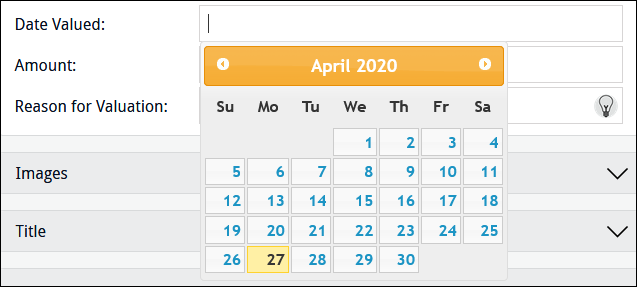
Date fields display a hint indicating the format of dates. When the cursor enters the field, the hint disappears and a calendar pops-up:
Either:
|
|||||||
|
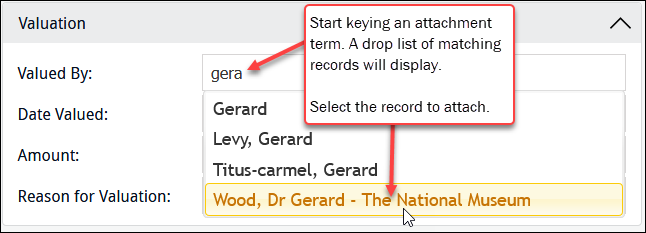
An attachment field allows users to search for and link a record to the current record (the record being created / edited with the Form). For example, Valued by is an attachment field linking to the Parties module. As characters are entered in an attachment field, matching records are dynamically listed. Select the record to attach:
|
|||||||
|
Optional, mandatory and recommended fields |
|
||||||
|
|
These buttons are disabled (grey) until data is entered in a field. An enabled button is coloured:
Note: If you select Reset, the Form will be cleared and any changes you have made to the Form will be lost. |
||||||
|
|
Collapse and expand sections. |
||||||


 and
and 
 and
and 
A Form can also include an image control that displays one or more images attached to the record you are adding / editing. The image control may enable you to manipulate an image (add polygons to it), remove it from the current record, and upload an image and attach it to the current record. Details here.
Working with a Form is straightforward and in most cases you simply key data into a field and click  to save the data and clear the Form ready for a new record.
When the Form is saved, it undergoes standard EMu validation (checking that numeric values are entered in fields configured as numeric, for instance; checking that mandatory fields have been completed). A record that fails validation will need to be corrected before it can be saved. Feedback is provided indicating how one or more fields fails validation.
When you have finished entering data, click:
|
|
Return to the Home screen. If you belong to more than one project, the Home screen lists all the projects you belong to. If you belong to one project only, the Home screen lists the data entry Forms and any Editors you have access to. |
|
|
Return to the list of Forms and Editors you have access to in the current project. |
|
-OR- |
|
|
|
Exit the application. |


Note: It is possible to bookmark a Form in order to return directly to it rather than navigating through projects.